As an Amazon Associate, we earn from qualifying purchases. Some links on this site are affiliate links at no extra cost to you. Our recommendations are based on thorough research and editorial judgment.


How To Use HDMI Splitter?

To use an HDMI splitter, first verify you have the right type—active or passive. We connect the HDMI cable from our source device to the splitter’s input, then run cables from the splitter’s outputs to each display. It’s essential to check resolution compatibility; many splitters support up to 4K. Also, confirm HDCP compliance to avoid playback issues. Our setup should now deliver high-quality video on multiple screens, and there’s more to explore about optimizing this technology.
Key Takeaways
- Connect your source device to the HDMI splitter’s input using an HDMI cable for signal transmission.
- Connect output devices to the splitter’s output ports with separate HDMI cables for multi-display setup.
- Ensure the splitter is powered on, especially if using an active splitter for better signal strength.
- Verify that all connected devices support the same HDMI version and resolution to avoid compatibility issues.
- Troubleshoot by checking cable connections and power supply if displays do not work or show signal loss.
Understanding HDMI Splitter Types
When it comes to understanding HDMI splitter types, it is essential to recognize that these devices come in various forms, each designed for specific needs. The most common configurations include 1-in 2-out, 1-in 4-out, and larger options like 1-in 16-out splitters. These options cater to everything from home theaters to large commercial setups, enabling shared display across multiple screens.
We must consider installation variations among powered and non-powered splitters, as they impact signal integrity. Higher-output splitters allow cascading options, ideal for extensive setups. Finally, compatibility factors play a significant role—ensure that all connected displays support the same video format for the best results. Choosing the right splitter type enhances your viewing experiences while supporting your specific requirements. Additionally, prioritize splitters that support 4K@60Hz for optimal video quality and performance.
Choosing Between Active and Passive HDMI Splitters
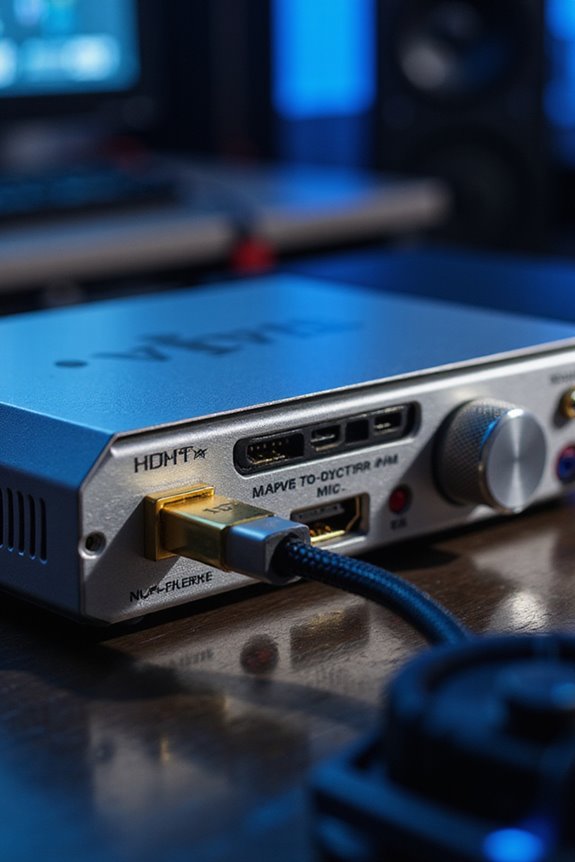
Understanding the types of HDMI splitters is just the start. When we’re choosing between active and passive HDMI splitters, we need to evaluate our specific needs.
Active Splitters
- Require external power for signal boosting.
- Ideal for longer distances, handling multiple displays without signal degradation.
- Maintains high-resolution video and audio quality.
Passive Splitters
- No external power source, relying on the input device’s signal strength.
- Best for setups with short cable runs of just a few meters.
- Struggle with multiple displays due to passive splitter limitations, risking signal degradation.
If you want reliability for complex setups or long distances, active splitter advantages outweigh the costs. For simple, short connections, passive splitters may be suitable and cost-effective. Additionally, HDMI extenders can also enhance performance by boosting signal quality for longer cable runs.
Considerations for Resolution and Compatibility
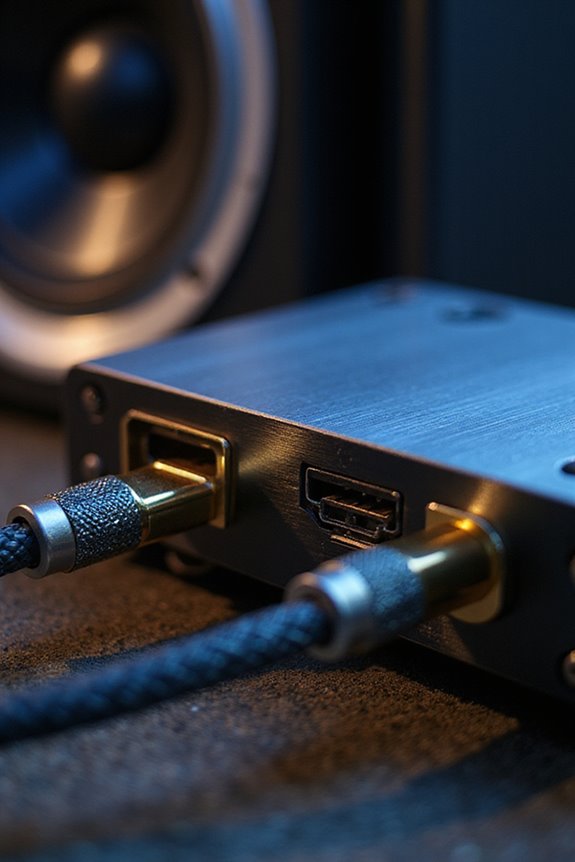
How do we guarantee we’re using the right HDMI splitter for our specific needs regarding resolution and compatibility? First, we should check the supported resolutions. Many splitters handle 1080p and some can reach 4K UHD, but they differ in refresh rates—some operate at 30Hz while others support 60Hz. It’s essential to ascertain that the splitter matches our source device’s resolution capabilities.
Next, we need to contemplate bandwidth requirements. HDMI 2.0 splitters can support up to 18Gbps, essential for high-definition content. Also, verify HDCP compliance to avoid playback issues. Additionally, choosing splitters that support advanced audio formats ensures superior sound quality in our setups.
Lastly, look for splitters with Multi-Resolution Output technology, allowing different resolutions for various displays, ensuring everyone gets the best visual experience.
Installation and Setup Process

Getting started with the installation and setup of your HDMI splitter is straightforward, especially after considering your resolution and compatibility requirements. Here’s how to do it:
- Gather Equipment: Collect your HDMI splitter, source device, HDMI cables, and output devices. Verify the cable length meets your needs for the splitter location.
- Connect Input Device: Plug an HDMI cable into the source device’s output port, and connect it to the splitter’s input port. Make sure the connection is firm.
- Connect Output Devices: For each output device, use HDMI cables to connect them to the splitter’s labeled output ports.
- Power Everything Up: Connect the splitter’s power adapter, verify all devices are powered on, and you’re ready to go! Additionally, ensure that your setup supports high-definition video quality to maximize the streaming experience.
Practical Applications for HDMI Splitters

HDMI splitters offer a range of practical applications that enhance our viewing and gaming experiences. For home entertainment, they allow us to connect one HDMI source, like a game console or streaming device, to multiple TVs to guarantee everyone enjoys the show—perfect for movie nights or watch parties.
In gaming setups, splitters let multiple players view the same game on different screens, enhancing shared experiences while maintaining high resolution.
Here are some key uses:
- Enjoy content in multiple rooms simultaneously.
- Simplify connections for different displays.
- Reduce clutter by using fewer source devices.
With HDMI splitters, we streamline our entertainment options, making it easier to connect and share across multiple devices in our homes or gaming lounges. Additionally, using a splitter that supports high bandwidth capabilities ensures optimal performance when streaming high-definition content.
Common Limitations of HDMI Splitters
While HDMI splitters provide numerous benefits for enhancing viewing and gaming experiences, they do come with some common limitations that you should be aware of.
- Resolution Limitations: When you connect displays of different resolutions, the splitter defaults to the lowest resolution. For example, a 4K TV may drop to 1080p if paired with a lower-resolution display.
- Signal Loss: Using long HDMI cables can lead to signal loss, reducing image quality. Always consider active splitters for longer runs.
- HDCP Issues: Incompatible splitters may cause problems with content protection, leading to dropouts or no display.
- Output Limits: Many splitters support only a few outputs, which could restrict your display setup.
Troubleshooting HDMI Splitter Issues
Have you ever experienced frustrating signal issues with your HDMI splitter? We’ve all been there. First, let’s address cable verification. Confirm that your HDMI cables are compatible with the desired resolution, like 4K or 8K. Inspect for any visible damage or loose connections, as these can lead to signal loss.
If problems persist, try power cycling. Power off all devices and unplug everything, reconnecting one display first before powering on the splitter. This method resolves over 60% of glitches.
Lastly, ascertain your power supply meets the splitter’s requirements. A faulty adapter can cause unstable performance. By following these troubleshooting steps, we can restore our HDMI setups and enjoy seamless viewing experiences together.
Tips for Optimal Performance
To maximize the performance of your HDMI setup, adhering to some key tips is vital. First, we should prioritize cable quality. High-quality HDMI cables rated at 18Gbps or higher prevent signal loss and are imperative for 4K and HDR content.
Next, let’s focus on power management. Use the supplied power adapter with your active HDMI splitter, making sure it matches the voltage specifications. If we experience glitches, simply power cycle your devices.
Lastly, keep cable lengths as short as possible to minimize signal degradation and avoid overloading the splitter. Choose a model that supports the number of outputs you require, guaranteeing it meets your necessary resolution and refresh rate needs. By following these tips, we’ll guarantee an ideal HDMI experience.
Frequently Asked Questions
Can I Connect Different Resolutions With an HDMI Splitter?
Absolutely, we can connect different resolutions using an HDMI splitter! With resolution compatibility, we’ll navigate display limitations effectively, ensuring each screen shines. Embracing this technology, we enhance our viewing experiences together, without compromising quality.
How Do I Know if My HDMI Splitter Is Active or Passive?
To determine if our HDMI splitter’s active or passive, we should check for indicator lights and use test methods like connecting multiple displays. If all outputs maintain quality, it’s likely active!
Are HDMI Splitters Compatible With 3D Content?
Yes, many HDMI splitters exhibit 3D compatibility when they’re designed with proper splitter functionality. We should always check specifications to guarantee they can handle 3D content without compromising quality for our shared viewing experiences.
Can I Use an HDMI Splitter With Gaming Consoles?
Yes, we can definitely use an HDMI splitter with gaming consoles! It guarantees console compatibility and maintains gaming performance, allowing us to enjoy multiplayer experiences on multiple displays without compromising our gameplay quality.
Do HDMI Splitters Require Specific HDMI Cables?
Absolutely, HDMI splitters do require specific HDMI cable types to maintain splitter signal quality. For ideal performance, we should choose lower gauge cables, especially for longer distances, ensuring a clear and consistent audio-visual experience together.